Stop guessing and start streaming. We’ve personally tested the installation process on every major device to bring you simple, screenshot-by-screenshot tutorials. Get your live TV running perfectly in minutes, with zero technical jargon.
Understanding IPTV Login Methods: M3U vs. Xtream Codes API
Before you can start streaming, you need to understand the two main ways IPTV services deliver content to your device. Here's everything you need to know about M3U playlists and Xtream Codes API.
What is an M3U Playlist?
An M3U playlist is a simple text file (or URL) that contains a long list of all your IPTV channels and their streaming links. Think of it as a massive directory that tells your IPTV app where to find each channel.
Pros: Universal compatibility — works with virtually every IPTV player. Cons: Can be very long and slow to load; EPG (TV guide) data may load separately.
What is Xtream Codes API?
Xtream Codes API (also called "API Login") is a modern, streamlined method that splits your login into three simple fields: a Server URL, Username, and Password. It's faster, cleaner, and more reliable than M3U.
Pros: Loads channels and EPG much faster; less prone to typos; better organization. Cons: Not supported by all older IPTV players (though most modern apps support it).
Where Do You Get These Login Details?
You can't use IPTV without valid credentials from a reliable provider. After purchasing a subscription from a vetted, tested IPTV service, you'll receive either an M3U URL or Xtream Codes API login details (or both) via email or WhatsApp.
Important: Never use free M3U playlists found online — they're almost always dead, overloaded, or insecure. For a stable, buffer-free experience, you need a dedicated premium service.
Your IPTV provider gives you the "fuel" (login details), but you need an "engine" to run it. Here is everything you need to know about IPTV player apps.
How It Works: Provider + Player = Streaming
When you purchase a subscription from an IPTV provider, they will send you login credentials (either an M3U URL or Xtream Codes API details). These credentials do not work on their own. You must download a dedicated IPTV Player App on your device (like a Firestick, Smart TV, or phone) and enter those details into the app. The app then connects to the provider's server and displays your channels.
1
Android / Firestick / Nvidia Shield
TiviMate IPTV Player
The undisputed king of IPTV apps. It offers a premium, cable-box-like interface, lightning-fast channel zapping, and flawless EPG integration. The premium version is an absolute must-have for serious viewers.
2
Universal (All Devices)
IPTV Smarters Pro
The most popular and widely supported free IPTV player. It cleanly separates Live TV, Movies, and Series, and is available on almost every platform, including iOS, Apple TV, Windows, and Smart TVs.
3
Samsung Tizen / LG WebOS
IBO Player
The best native solution for Smart TV owners who cannot sideload apps. Available directly in the Samsung and LG app stores, it is lightweight, stable, and requires only a small one-time activation fee.
4
Android / Firestick
XCIPTV Player
A fantastic, visually appealing alternative to Smarters. It features a modern, user-friendly layout for navigating live TV, movies, and series, and handles large playlists very efficiently.
5
iOS / iPadOS / macOS
GSE Smart IPTV
The go-to choice for Apple users. It handles both M3U playlists and Xtream Codes API beautifully, and includes useful features like Chromecast support and local recording capabilities.
Need More Details or the Latest App Reviews?
Choosing the right app depends heavily on your specific device. We have a complete, in-depth breakdown of the best IPTV apps for every platform, and we regularly update our blog with reviews of new and emerging IPTV players.
Follow these exact, tested instructions to get your M3U or Xtream Codes login working perfectly on your chosen device. No technical jargon, just clear steps.
1
TiviMate IPTV Player
Best for: Amazon Firestick, Android TV, Nvidia Shield
Install the App: Download TiviMate from the Google Play Store, or use the "Downloader" app on Firestick (Code: 493536).
Add a Playlist: Open TiviMate and select "Add Playlist".
Enter Credentials: If using Xtream, enter your Server URL (must start with http:// or https:// and include the port, e.g., :8080), Username, and Password exactly as provided by your IPTV provider.
Name & Sync: Give your playlist a name (e.g., "My TV"). TiviMate will now fetch your channels and EPG. This may take 1–3 minutes depending on the playlist size.
Pro Tip: Go to Settings > Playlist > Enable "Auto-update playlist" so your channel list and EPG refresh automatically in the background.
2
IPTV Smarters Pro
Best for: Universal (iOS, Android, Windows, macOS, Smart TVs)
Install the App: Download from your device's official app store or the official IPTV Smarters website.
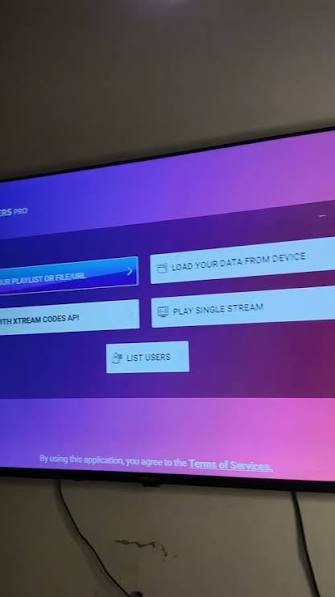
Select Login Type: Open the app and choose "Login with Xtream Codes API". (If your provider only gave you an M3U link, choose "Load Your Playlist or File").
Fill in the Details: • Any Name: Type anything (e.g., "Home TV").
• Username: Enter your exact username.
• Password: Enter your exact password.
• Server URL: Enter the server link (e.g., http://server.com:8080). Do not add anything after the port number.
Add User: Click the "Add User" button at the bottom. The app will verify your credentials and load the dashboard.
Pro Tip: If you get an "Authentication Failed" error, double-check that your Server URL includes the `http://` or `https://` prefix and the port number (like `:8080` or `:25461`).
3
IBO Player
Best for: Samsung Tizen & LG WebOS Smart TVs
Install from TV Store: Open your Samsung Apps or LG Content Store, search for "IBO Player", and install it.
Get Device ID: Open the app on your TV. It will display a Device ID and a Device Key on the screen. Write these down or take a photo with your phone.
Activate Online: On your phone or computer, go to iboplayer.com/activate.
Enter Playlist Details: Input your Device ID and Key. Then, paste your M3U URL or Xtream Codes details into the respective fields and click "Add".
Refresh the App: Return to your TV, close the IBO Player app completely, and reopen it. Your channels will now load.
Pro Tip: IBO Player offers a free trial, but requires a small one-time activation fee (around $7) to continue using it permanently. This is normal and standard for Smart TV apps.
4
XCIPTV Player
Best for: Android TV Boxes & Firestick
Install the App: Download from the Google Play Store, or use the Downloader app on Firestick (Code: 493536 or check your provider's recommendation).
Open & Select Login: Launch the app. It will immediately present you with three empty fields: Username, Password, and URL.
Input Credentials: Carefully type or paste your Xtream Codes details into the corresponding boxes. Ensure there are no accidental spaces at the beginning or end of the text.
Connect: Click the Right Arrow (→) or "Connect" button. The app will validate the server and load your live TV, movies, and series categories.
Pro Tip: XCIPTV is highly customizable. Go to Settings > UI to change the background, layout, and player type (VLC or ExoPlayer) if you experience video playback issues.
5
GSE Smart IPTV
Best for: iPhone, iPad, and macOS
Download the App: Get "GSE Smart IPTV" from the Apple App Store on your iOS device or Mac.
Add a Source: Open the app and tap the "+" (plus) icon in the top-left corner of the screen.
Choose Format: Select "Add Xtream Codes API" (Recommended) or "Add M3U URL" from the dropdown menu.
Enter Details: Fill in the "Name" (anything you like), "Server URL", "Username", and "Password".
Save: Tap "Save" in the top-right corner. The app will return to the main screen and begin downloading your channel list and EPG data.
Pro Tip: If your EPG (TV Guide) doesn't load automatically, go to the "EPG" tab in the main menu, tap the "+" icon, and manually paste the EPG URL provided by your IPTV service.
The Hardware Matters: Best Devices for IPTV Streaming
Even the most reliable, buffer-free IPTV provider will struggle if you try to run it on an underpowered, outdated device. Here is our expert breakdown of the best hardware for IPTV in 2026, ranked by performance and ease of use.
1. Amazon Firestick 4K / Fire TV Cube (The Gold Standard)
For 90% of users, the Amazon Firestick is the absolute best choice. It is incredibly affordable, powerful enough to handle 4K streams effortlessly, and fully supports top-tier apps like TiviMate and IPTV Smarters. The Fire TV Cube is even better, offering hands-free voice control and an Ethernet adapter for wired stability.
Pros
Extremely affordable (often under $30 on sale)
Full support for TiviMate (the best IPTV app)
Compact and hides easily behind the TV
Cons
Requires the "Downloader" app to sideload some players
WiFi-only (unless you buy a separate Ethernet adapter)
2. Android TV Boxes (Nvidia Shield, Chromecast with Google TV)
If you want premium, no-compromise performance, an Android TV box is the way to go. The Nvidia Shield TV Pro is widely considered the most powerful streaming device on the market, featuring an Ethernet port, AI upscaling, and zero lag. The Chromecast with Google TV is a fantastic, budget-friendly alternative.
Pros
Superior processing power and RAM
Built-in Ethernet ports for maximum stability
Access to the full Google Play Store
Cons
Premium options (like Nvidia Shield) are expensive
Cheap, no-name Android boxes can be sluggish and insecure
3. Smart TVs (Samsung Tizen & LG WebOS)
The most convenient option, as it requires no extra hardware. Both Samsung and LG have dedicated IPTV apps available in their native app stores, such as IBO Player, Smart IPTV (SIPTV), or Nanomid. However, the app ecosystem is heavily restricted compared to Android.
Pros
No extra boxes, cables, or remotes needed
Clean, minimalist living room setup
Apps are optimized specifically for the TV's hardware
Cons
Cannot install advanced apps like TiviMate
Older TV models may struggle with large M3U playlists
Some apps require a one-time activation fee
4. Apple TV & iOS Devices (iPhone / iPad)
Apple devices offer a premium, incredibly smooth user experience. The Apple TV 4K is a powerhouse for living room streaming. For on-the-go viewing, iPhones and iPads are perfect. However, Apple's strict App Store guidelines mean you won't find TiviMate here; you will rely on apps like GSE Smart IPTV or IPTV Smarters.
Pros
Unmatched build quality and smooth UI
Excellent for mobile viewing (iPhone/iPad)
Strong privacy and security features
Cons
Limited selection of dedicated IPTV players
Apple hardware carries a premium price tag
5. Windows PC & Mac / Laptops
While not the most convenient for a living room setup, computers are fantastic for testing new IPTV services, troubleshooting login issues, or watching sports at your desk. Lightweight media players like VLC, MyIPTV Player (Windows), or OttPlayer (Mac) handle M3U playlists perfectly.
Pros
Excellent for testing and troubleshooting
Large screen and powerful decoding capabilities
Free, open-source player options (like VLC)
Cons
Not ideal for a traditional "couch" viewing experience
Requires a keyboard/mouse for navigation
Stay Ahead of the Curve: Latest Device News & Updates
The IPTV hardware landscape changes fast. New apps are released, firmware updates fix (or break) compatibility, and new devices hit the market. We continuously test and update our resource library to ensure you always have the latest, most accurate setup guides and buying recommendations.
Experiencing buffering, missing channels, or login errors? Before you panic, check these expert solutions to the most common IPTV setup problems.
I'm getting an "Authentication Failed" or "Invalid Password" error.
This is the most common setup error, and it’s almost always a simple typo. Check these three things:
Trailing Spaces: Ensure there are no accidental spaces before or after your Username, Password, or Server URL when copying and pasting.
Missing Port Number: Your Server URL must include the port number at the end (e.g., http://server.com:8080 or :25461).
Expired Subscription: If your details are 100% correct, your subscription may have lapsed. Contact your provider's support to verify.
My EPG (TV Guide) is blank or showing the wrong times. How do I fix it?
The EPG (Electronic Program Guide) relies on a separate data URL, not your main login. If it's not working:
Check the URL: Ensure you pasted the exact EPG URL provided by your service into your player's specific EPG settings menu.
Timezone Mismatch: Go into your IPTV app settings (like TiviMate or Smarters) and ensure the EPG timeshift/timezone matches your local region.
Force Refresh: Delete the current EPG cache in your app settings and force a reload. It can take 10–15 minutes to fully populate.
Why is my IPTV buffering during live sports or peak hours?
Buffering during big events (like the Premier League or UFC) usually comes down to three things:
ISP Throttling: Your internet provider might be intentionally slowing down streaming traffic. Fix: Connect through a reputable VPN to bypass throttling.
WiFi Interference:Fix: Switch to a 5GHz WiFi band or, ideally, use a wired Ethernet connection for maximum stability.
Server Overload: Your provider's servers can't handle the traffic spike. Fix: Try switching to a "Backup" channel link if your app supports it, or consider upgrading to a premium provider with anti-freeze technology.
I have audio but no video (or a black screen). What's wrong?
This is almost always a codec compatibility issue between the video stream and your media player.
The Fix: Go into your IPTV app's settings (e.g., TiviMate, VLC, or Smarters) and find the "Hardware Decoding" or "Video Decoder" option. Change it from Hardware to Software (or vice versa). This forces the app to process the video stream differently and usually resolves the black screen instantly.
Why does my IPTV app keep crashing or freezing?
App crashes are usually caused by one of three things:
1) Your playlist is too massive (e.g., 20,000+ channels) for your device's RAM. Try loading a smaller, categorized M3U file if your provider offers one.
2) The app's cache is full. Go into your device settings and clear the app cache.
3) You're using an outdated, unofficial version of the app. Always update to the latest version from a trusted source.
Tried Everything, But Still Having Issues? The Problem Might Be Your Provider.
No amount of troubleshooting, VPNs, or app tweaking can fix a provider with overloaded, low-quality servers. If you're tired of buffering, missing channels, and ghosting support, it's time to upgrade to a service that actually respects your money and delivers on its promises.